Airbus A320 family
 | |
|---|---|
 | |
 The 3d cockpit of the A320-family | |
| Type | Airliner |
| Configuration | Low wing aircraft, Monoplane aircraft, Retractable gear aircraft, Tricycle landing gear aircraft |
| Propulsion | Twinjet (Jet aircraft, Twin-engine aircraft) |
| Manufacturer | Airbus |
| Author(s) |
|
| FDM | JSBSim |
| --aircraft= |
A320-200-CFM A320-200-IAE A320neo-CFM A320neo-PW |
| Status | Advanced production |
| FDM |
 |
| Systems |
|
| Cockpit |
|
| Model |
|
| Supports |
  |
| Development | |
| Website |
 |
| Repository |
 |
| Download |
 |
| License | GPLv2+ |
|
| |
The Airbus A320 family is a series of twinjet narrowbody commercial passenger jets manufactured by Airbus Industrie. Designed for short to medium haul flights, the aircraft pioneered fly-by-wire technology and regularly competes with the Boeing 737 series. This is an accurate and complex recreation of the A320 family.
Main development is currently on hold awaiting restructuring, but fixes and minor improvements are still received from GitHub.
Overview
Includes:
- A320-214 (CFM56)
- A320-232 (IAE V2500)
- A320-251N (CFM Leap)
- A320-271N (PW1100G)
This aircraft is available from the launcher. If you want to install it manually, see the right InfoBox for the repository to download and remember to rename the aircraft's folder to "A320-family" after downloading if needed.
Development Team
- Flight Dynamics: Josh Davidson (Octal450)
- Systems, Instruments: Josh Davidson (Octal450), legoboyvdlp, Nia, Matthew Maring (hayden2000)
- 3D/Textures: Thorsten Herrmann (TH-555), Semir Gebran (CaptB)
Fly-by-Wire
Compared to Boeing aircraft, the A320 fly-by-wire system several differences:
- The aircraft trims the elevators automatically when in Normal Law. Attempting to trim will result in "fighting" the fly-by-wire.
- The aircraft holds pitch and roll angles when the sidestick is centered.
- Moving the sidestick commands a roll rate and/or a load factor maneuver (for pitch).
- In Normal Law, the system will overpower the pilot to prevent overspeeds, stalls, bank angles above 67 degrees, and a few others.
FADEC
- Engine thrust levers command manual thrust, with fixed detents providing Climb, MCT/Flex, or TOGA power. When Auto Thrust is engaged, the lever position dictates the max power Auto Thrust may command. MCT/Flex and TOGA continue to provide fixed thrust, while the Climb position allows Auto Thrust operation, and dictates that the maximum power allowed is the climb thrust limit.
FCU Selector Knobs
The flight control unit (FCU) is the panel on the glareshield that contains controls for the auto flight system, electronic flight information system (EFIS) screens and other systems. It contains various selector knobs that rotate. Some knobs can also be pushed or pulled in order to change modes or other settings.
| Left click |
Middle click * |
Right click |
Scroll Up |
Scroll Down | |
|---|---|---|---|---|---|
| Normal (no modifier keys) |
Push | Pull | --- | Turn clockwise |
Turn counterclockwise |
| While holding ⇧ Shift key |
Pull | Turn clockwise (10× faster) |
Turn counterclockwise (10× faster) |
* On many setups, the scroll wheel of a mouse can be used as a middle button by pressing directly down on the wheel.
Note: This section describes how to physically manipulate controls within the cockpit. Details about what the controls do, when they should be used, etc., are beyond the scope of this section.
Gallery
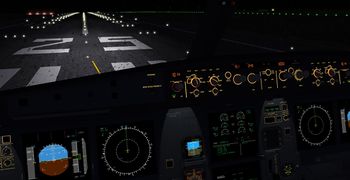
Rain effect
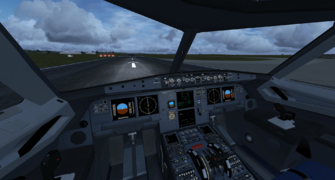
The cockpit
.jpg)

Related content
Forum topics
- Is the TCA Airbus edition Compatible with Flightgear ? topic on the forum
 (February 2021 -) - Hints and tips on using the Thrustmaster TCA Airbus edition sidestick and throttle quadrant with FlightGear.
External links
| |||||